Moving in
Import notes from Notion, Obsidian, Bear and Apple Notes
How do you move years of notes out of another app without losing folders and images? FixNote reads Obsidian, Bear and Notion exports, pulls notes straight from Apple Notes on a Mac, and exports everything to Markdown at any time.
Plan: Free
The problem
Switching note apps is scary, because everything you collected over the years might stay behind. You also want to know up front that you can leave the new app with all your notes.
How to move your notes
- 1
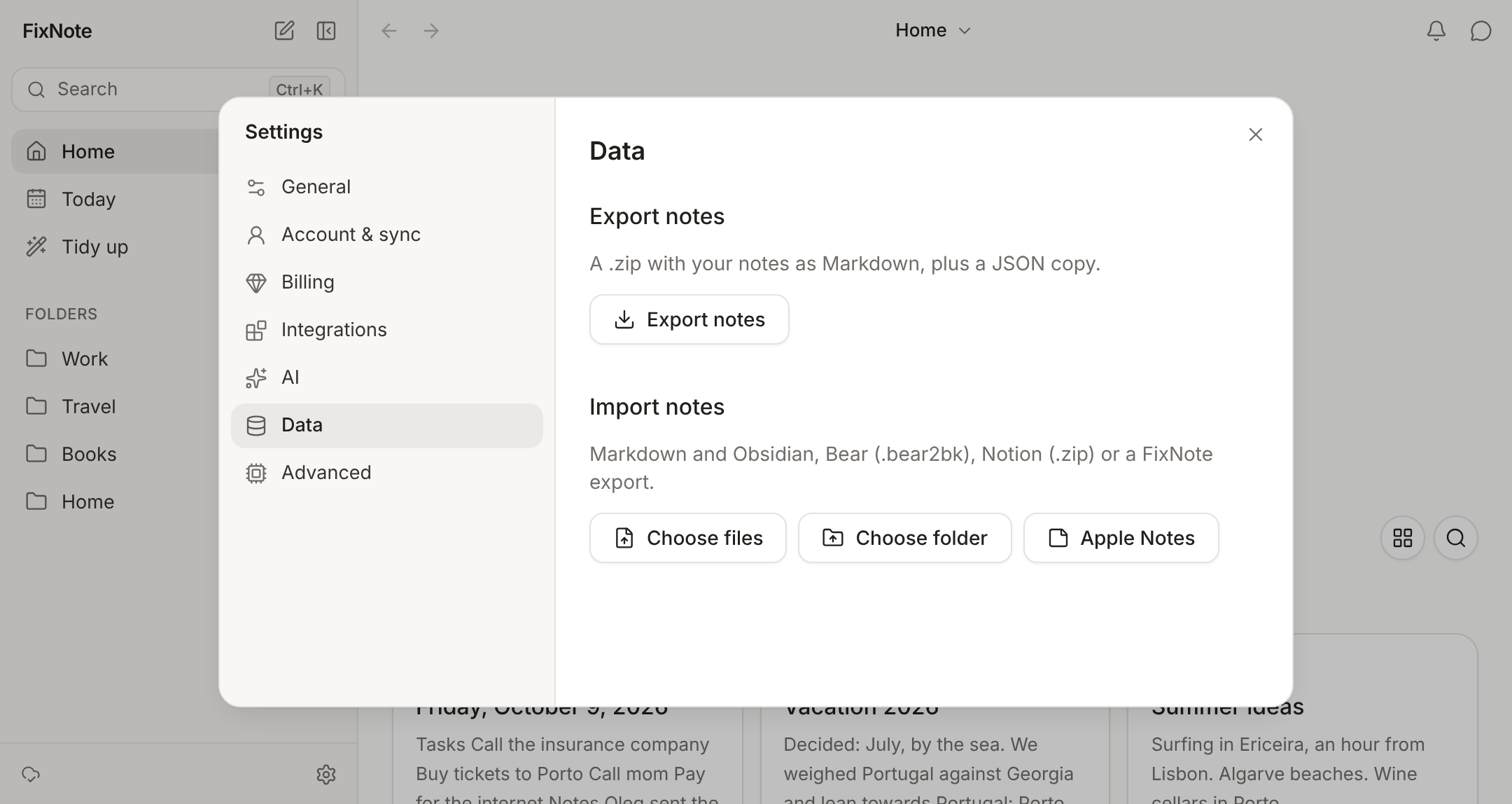
Pick the source. In Settings → Data → "Import notes", click "Choose files" or "Choose folder". In the Mac app there is also an "Apple Notes" button.
- 2
Check what was found. FixNote shows how many notes, folders and images it found and how many files it will leave out. Nothing changes until you click "Import".
- 3
Import. Notes arrive with their folders, dates and images. If you don't like the result, the whole import is reversed with "Undo" in the notification.
How to bring your notes over
Open Settings → Data and find “Import notes”.
Obsidian or any Markdown folder: click “Choose folder” and pick your vault. The folder structure is kept, and images, including embeds like ![[photo.png]], become attachments. Tags from the front matter are added at the end of the note as a #tag line, so search finds them.
Bear: make a backup in Bear and choose the .bear2bk file. Tags with spaces such as #a b# become #a-b.
Notion: export your pages as Markdown & CSV and choose the .zip you get. FixNote removes the long IDs Notion adds to file names.
Apple Notes (Mac app only): click “Apple Notes” and allow access when macOS asks. Choose the folders; nothing changes in Apple Notes itself. Locked notes are skipped, PDFs, scans and drawings are not moved, and FixNote tells you how many of each there were.
Tables, PDFs and other files that are not notes are left out. Links to other notes from the old app stay as plain text.
Export sits in the same place: “Export notes” saves a .zip with all your notes.
When it helps
You are leaving Notion because you want notes that open without the internet. You are moving years of Bear notes to a Windows PC, where Bear doesn’t run. You want a copy of your notes on disk once a month, just in case. After a big import, run Tidy up: FixNote suggests titles for untitled notes and folders for the loose ones.
When another tool is better
If you want your notes to live on disk as plain .md files at all times, edited by other programs too, Obsidian fits better: FixNote keeps notes in its own database and gives you Markdown on export (FixNote vs Obsidian). Notion databases are not carried over, since CSV tables are left out. If your work depends on such tables with properties, keep them in Notion.
Privacy notes
Files for import are read on your device and never uploaded. The export is built on your device too and saved wherever you choose. Read the privacy policy.
Questions
- Which formats can FixNote import?
- .md, .markdown and .txt files, an Obsidian vault folder, a Bear backup (.bear2bk), a Notion export in Markdown & CSV format, and FixNote's own export. Apple Notes are imported directly in the Mac app.
- Can I import from Evernote?
- FixNote does not read .enex files directly. Convert the notes to Markdown with a third-party converter first, then import the folder.
- What happens if I run the import twice?
- Notes whose text is already in FixNote are skipped as duplicates, so nothing gets doubled.
- What is in the export?
- A .zip with every note as a Markdown file in its folder, images in an attachments folder, and a full JSON copy alongside. It opens in any Markdown editor and imports back into FixNote.
- Do I need Pro to import or export?
- No. Both work on the Free plan, without an account.
Try FixNote
Free, no account needed: Windows, macOS and the web.