Lists
Checklists and tables
Where do you keep a shopping list, a renovation plan or a price comparison without opening a separate app for each? A FixNote note can hold a checklist with nested items and a table, and it all stays plain Markdown.
Plan: Free
The problem
To-dos live in one app, notes in another and tables in a third. The task "buy tiles" knows nothing about the measurements you wrote down in your renovation note, so you keep switching windows.
How it works
- 1
Start a checklist. Type [ ] and a space at the start of a line, press Ctrl+Shift+9 (⌘⇧9 on a Mac) or pick Checklist in the right-click menu.
- 2
Nest your items. Enter adds the next item, Tab indents it, Shift+Tab moves it back out. A click checks an item off.
- 3
Paste a table. Copy a Markdown table from a chatbot answer, a README or another editor and paste it into a note, and it turns into a table. Tab moves between cells and adds a row in the last one.
How to use checklists and tables
An empty note reminds you: - [ ] for tasks. A checklist starts with [ ] and a space at the beginning of a line, while Ctrl+Shift+9 or Checklist in the right-click menu turns lines you already wrote into tasks. Enter adds the next item and Tab nests it. That makes it easy to break a big job into steps: “Pack for the trip” with “Documents” and “First aid kit” underneath.
Tables come from Markdown. Paste text like | Item | Price | with a |---|---| line under it, and FixNote shows it as a table. Tables in notes imported from Obsidian or Notion open the same way. Tab moves to the next cell and adds a new row at the end of the table. To remove a table, select all its cells and press Backspace.
If you dictated a to-do list as one long stream, press Ctrl+Shift+E with nothing selected and choose “Tidy up the note”. Anything that sounds like a task becomes a checklist item. For a selected passage, Reformat does something similar. You see every AI edit before it applies and decide whether to accept it. This needs a model: FixNote AI, your own key or Ollama.
When it helps
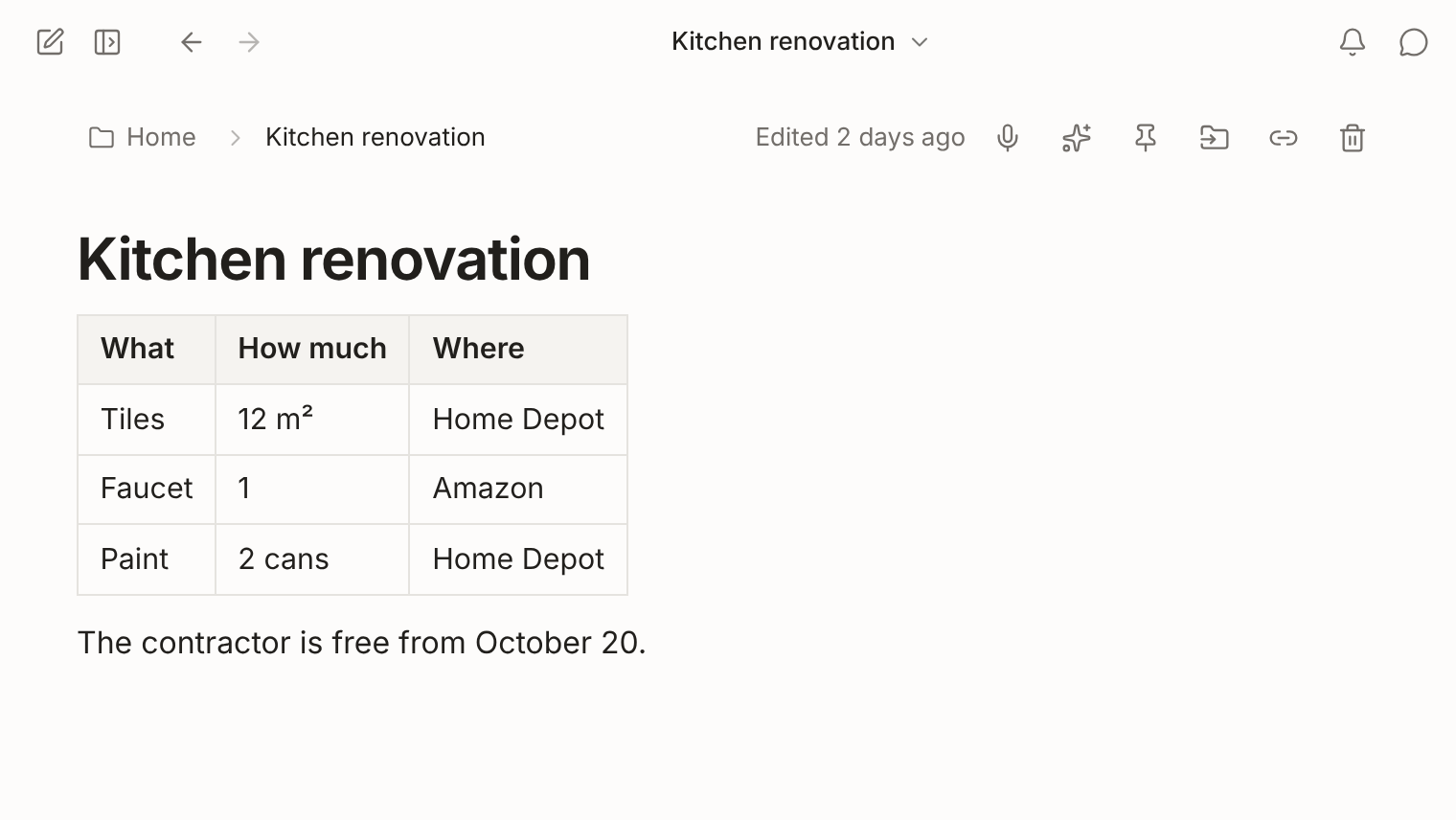
In a shopping or packing list you check items off as you go. A renovation note can hold a checklist of jobs next to a table of room sizes and material prices. A plan comparison from a chatbot answer can go in as a table, with your own conclusions written underneath.
Checklists are most useful in the daily note. Unfinished tasks there move to the next day with one click, and recurring ones show up on the right days by themselves. The counter on the card tells you how much is left without opening the note.
When another tool fits better
Tables in FixNote are simple: there are no formulas, no sorting and no merged cells, and you can’t add a column to an existing table with a button. For calculations, use Excel or Google Sheets. For databases with properties, filters and views, Notion is more convenient; see the comparison with Notion. If your tasks need due dates with reminders and assignees, a task manager such as Todoist fits better.
Privacy notes
Checklists and tables are part of the note text on your device, and you need no account for them. With Pro they sync with the note, encrypted on the device. Read the privacy policy.
Questions
- How do I make a checklist in a note?
- Type [ ] and a space at the start of a line, or press Ctrl+Shift+9 (⌘⇧9 on a Mac). Checklist in the right-click menu turns the selected lines into tasks.
- How do I create a table?
- There is no insert-table button yet. A table appears when you paste a Markdown table or import notes that contain tables. You can also ask the assistant to put a table into a new note.
- Can I see how many tasks are done?
- Yes. Each note card in the list shows done tasks out of the total, for example 3/5.
- Will my checklists and tables open in Obsidian and other editors?
- Yes. Tasks are stored as `- [ ]` and `- [x]`, tables as `| a | b |`. Export in Settings → Data saves a .zip archive of Markdown files.
Try FixNote
Free, no account needed: Windows, macOS and the web.