MCP
MCP server for your notes: Claude, Cursor and Codex
Want Claude or Cursor to know what you decided about a project without retelling it every time? The MCP server built into FixNote lets these apps search and read your notes and, if you allow it, change them.
Plan: Free
The problem
Decisions, drafts and lists live in your notes, while the work happens in Claude or in a code editor. So you copy notes into the chat by hand and keep watch that nothing private slips in.
How to connect
- 1
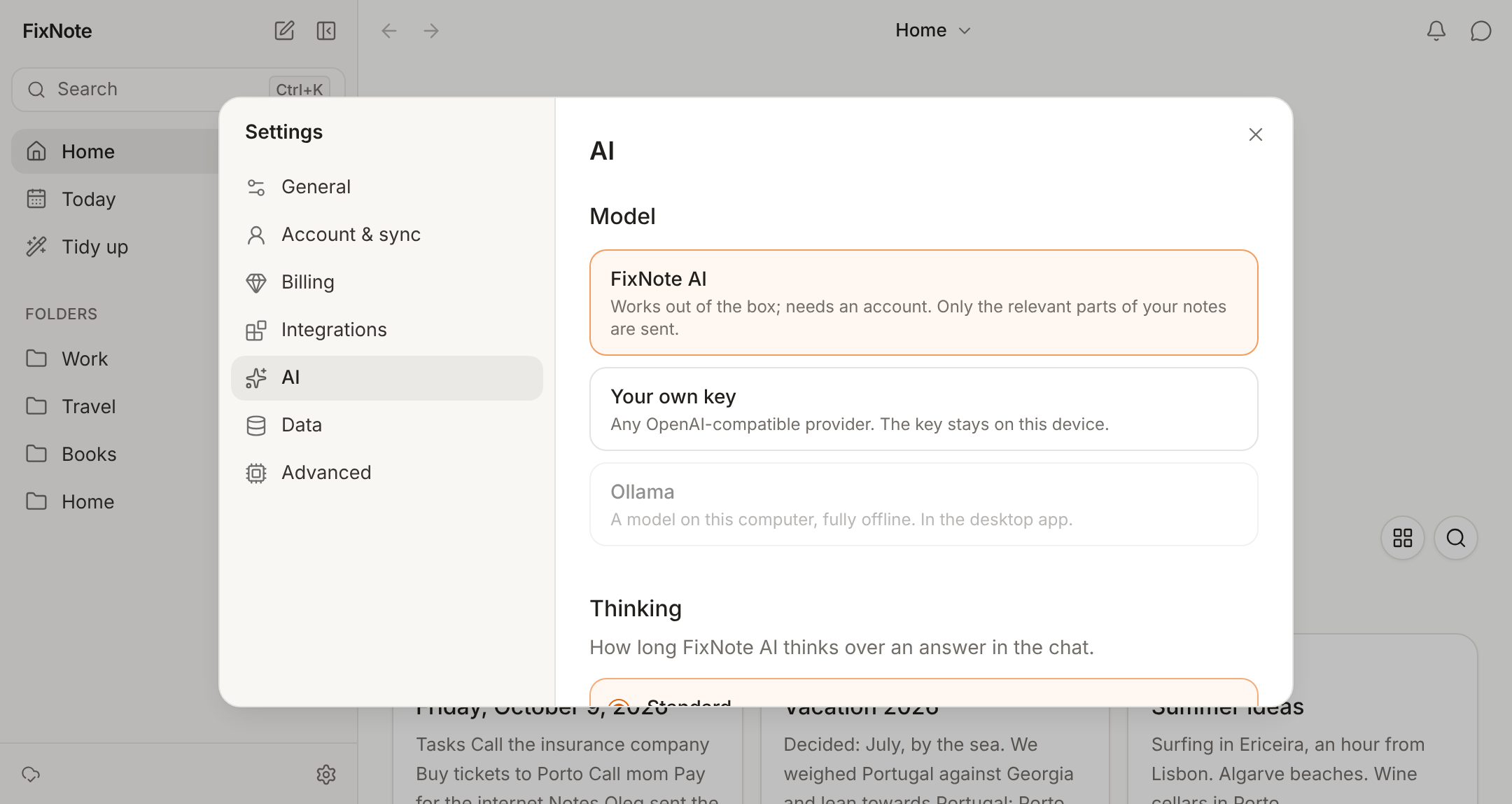
Open the settings. In the desktop app, go to Settings → AI → "Connected apps (MCP)".
- 2
Add the app. Click "Add to Claude Desktop", "Add to Cursor" or "Add to Codex" and restart that app. For any other client, use "Copy settings".
- 3
Set the limits. Choose an access level and, under "Visible notes", pick the folders and notes the app may see.
How to connect FixNote to Claude, Cursor or Codex
In the desktop app, open Settings → AI → “Connected apps (MCP)”. The “Add to Claude Desktop”, “Add to Cursor” and “Add to Codex” buttons write the settings into that app’s config for you; restart the app afterwards. On a Mac, first move FixNote to Applications and open it from there, otherwise FixNote will ask you to.
There are four access levels. “Off” blocks everything. “Read only” is the default: the app can search and read notes, see recent ones and the daily note, and open images and files. “Read and write” adds creating and editing notes and folders, moving notes and attaching files, but not deleting. “Full” allows deleting too.
Under “Visible notes” you can keep “All notes” or choose “Selected folders and notes”. The app then sees only the folders you ticked, with their subfolders, plus the single notes you added; to it, everything else does not exist. New notes it creates go only into the selected folders. An image or file is available to it only if it can see the note that holds it.
Every change made through MCP is recorded under “AI activity” in Settings → AI, and you can undo it there.
When it helps
In Cursor you can ask “find in my notes what we decided about the API and follow it”. In Claude Desktop you can build a task list from the week’s work notes or, with write access, add a summary of a discussion to today’s daily note. These are the same note tools FixNote’s own assistant uses, so within the access you give it, an app can do what the assistant can.
When another tool is better
If your knowledge lives in a team workspace, Notion’s MCP server is the better fit: through it, apps work with the pages of your Notion workspace. See the FixNote and Notion comparison. FixNote’s MCP server works with the notes on one computer and only in the desktop app. To start, choose “Read only” and give the app a single folder of work notes.
Privacy notes
The MCP server runs on your computer and reads the local FixNote database; our server is not involved. Whatever the connected app reads goes to that app's own model, for example to Anthropic for Claude, under that service's terms, so show it only the folders it needs. Read the privacy policy.
Questions
- Do I need Pro to connect my notes to Claude?
- No, the MCP server is part of the Free plan. It needs no account and no internet and works in "Only on this device" mode too.
- Does MCP work in the browser?
- No, only in the FixNote desktop app for Windows and macOS. In the web app the MCP settings say "Available in the desktop app."
- Can Claude delete my notes?
- Only with "Full" access. With "Read and write" an app can create and change notes but not delete them. Anything deleted can be restored from the AI activity log.
- Does it work with Claude Code or another MCP client?
- Yes. Click "Copy settings" and paste them wherever the client keeps its list of MCP servers.
Try FixNote
Free, no account needed: Windows, macOS and the web.